

3 Methods for Lenovo FRP Bypass on Phones & Tablets [Latest]
Summary: Stuck on Google account verification after resetting your Lenovo phone or tablet? This guide covers 3 effective solutions for Lenovo FRP Bypass. Follow the steps to unlock your Lenovo device safely and get back to using it without stress.
If you’ve ever reset your Lenovo phone or tablet and suddenly found yourself locked out by Google account verification, you’re not alone. Factory Reset Protection (FRP) is a robust security feature designed to prevent unauthorized access, but it can cause major headaches if you forget your login details. To help you regain full access to your Lenovo device, this article explains what Google FRP is and provides 3 proven methods for Lenovo FRP Bypass. Whether you want to use official Google credentials, a professional software solution, or an APK bypass method, we’ve got you covered.
What Is Google FRP?
Factory Reset Protection (FRP) is a security feature introduced by Google in Android 5.1 and later. Once enabled, it requires the original Google account credentials after a factory reset to prevent unauthorized access to your Lenovo device.
The problem with FRP arises when you forget your Google account or buy a second-hand Lenovo device still linked to one. In such cases, you’ll need a Lenovo FRP Bypass method to regain access without risking data loss or device issues.
With various tools and methods available online, it’s crucial to follow reliable, secure procedures tailored specifically for Lenovo phones and tablets. Below, we cover three practical solutions ranging from Google credential recovery to advanced software tools and APK bypass techniques.
Solution 1. Remove FRP on Lenovo with Google Credentials
The safest and most straightforward way to unlock a Lenovo device that’s stuck on the FRP screen is to use the original Google account information. This method doesn’t require any third‑party tools and is supported by Google and Lenovo. Use this method if you remember your Google account credentials — it’s the safest and easiest way to unlock FRP without any tools or risk.
Here are the steps to remove FRP on Lenovo with Google credentials:
Step 1. Turn on your Lenovo phone or tablet.
Let the device boot to the setup screen after a factory reset.
Step 2. Connect to Wi‑Fi.
A stable internet connection is necessary to verify the credentials with Google servers.
Step 3. Tap “Next” or “Verify your account.”
You’ll see a prompt to enter your Google account email and password.
Step 4. Enter the original Google account details.
Be sure to input the email and password exactly as they were before the reset.

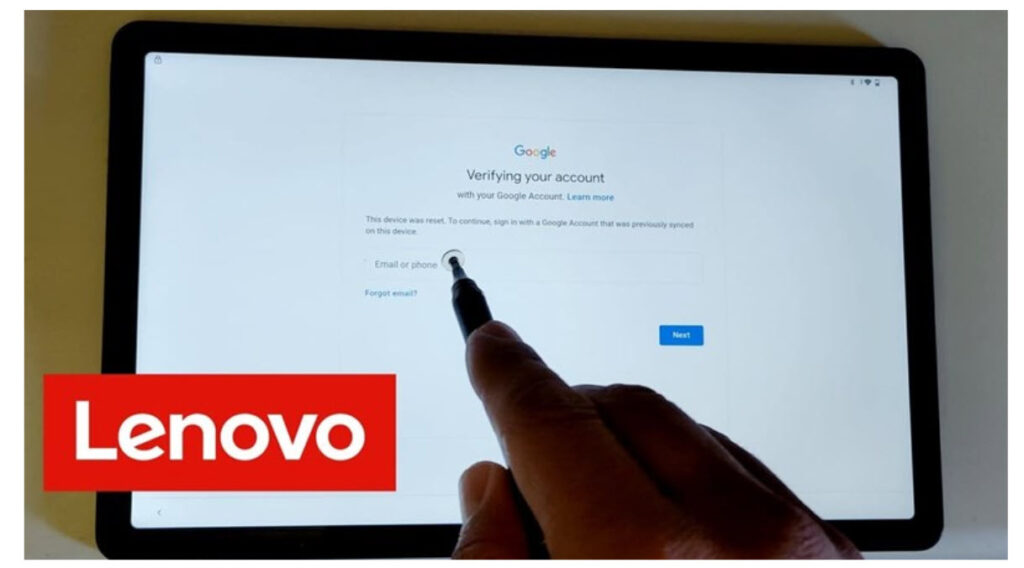
Step 5. Complete account verification.
If the credentials are correct, you’ll successfully bypass FRP and continue setup.
If you’ve exhausted all credential recovery options but still cannot access your Lenovo device, continue to the next method for alternative Lenovo FRP Bypass solutions.
Solution 2. Lenovo FRP Bypass with iMobie DroidKit [Easy & Secure]
When you’re locked out and cannot recover the original Google account, professional software tools provide a reliable and effective option. Among these, iMobie DroidKit stands out as one of the best solutions for Lenovo FRP Bypass, offering a fast, user‑friendly, and secure experience. Beyond FRP removal, DroidKit is an all‑in‑one Android toolkit that also supports screen unlock, system repair, data recovery, and system reinstallation, making it a practical choice for handling various Lenovo device issues in one place. Thanks to its wide compatibility, step‑by‑step instructions, and clean interface, DroidKit is ideal for both beginners and advanced users needing a reliable way to unlock, repair, or manage Lenovo devices.
Main Features of iMobie DroidKit:
- User‑friendly: Intuitive interface with clear instructions.
- High success rate: Works across many Lenovo models and Android versions.
- No technical expertise required: Suitable for beginners.
- Safe and secure: No risk of malware or damage to your device.
Here is the step‑by‑step guide for Lenovo FRP Bypass via iMobie DroidKit:
Step 1: Download and Install DroidKit
Go to the official iMobie website and download DroidKit. Install it on your computer and launch the program.
Step 2: Start FRP Removal
Choose the “FRP Bypass” tool in DroidKit. Follow the on‑screen instructions to begin the bypass process.

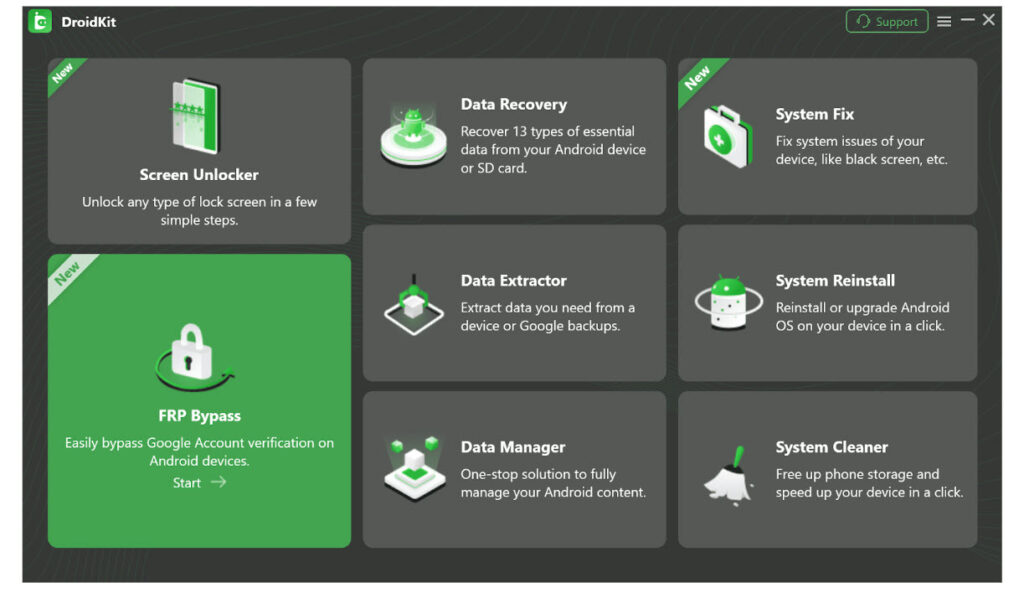
Step 3: Select Device and Start Bypass
Choose Lenovo as your device brand in DroidKit, then click Start to initiate the FRP bypass process. The software will begin preparing the necessary configuration for your device.

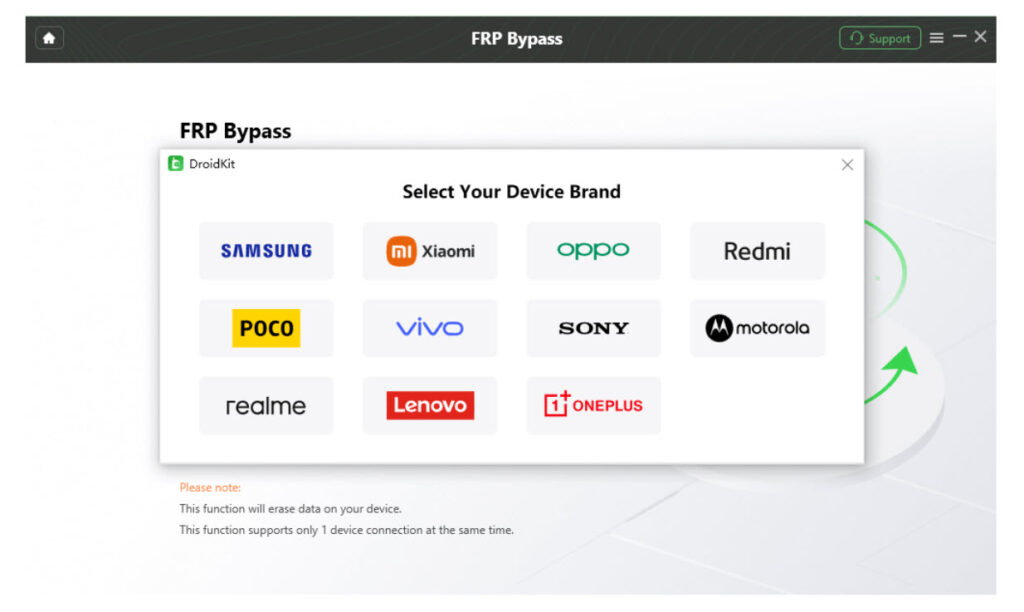
Step 4: Complete Bypass
DroidKit automatically works to remove the Google lock. Once complete, your Lenovo device will restart without Google FRP verification.

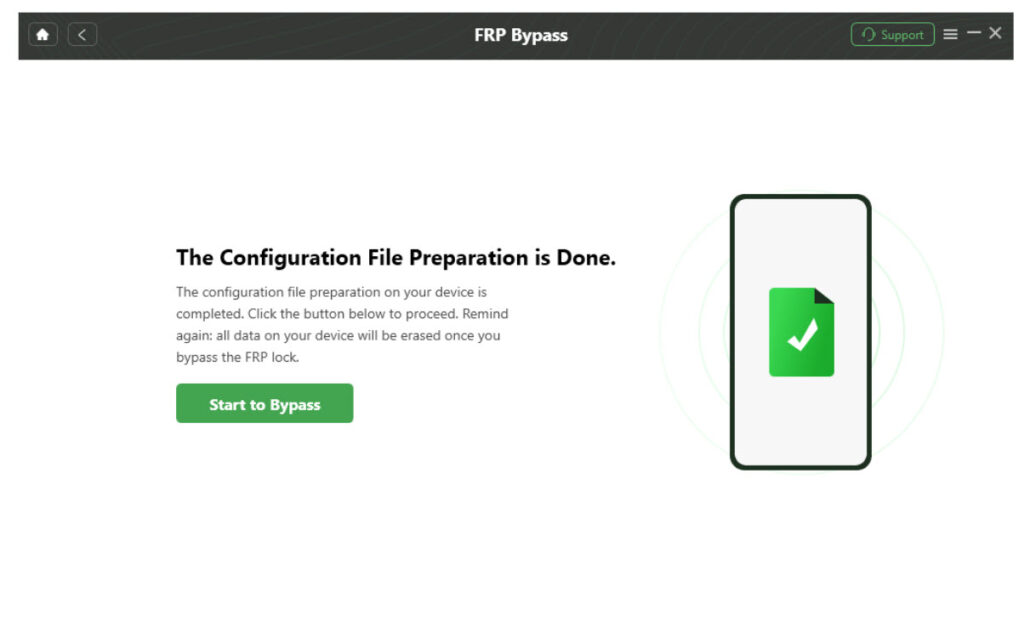
With this powerful tool, Lenovo FRP Bypass is simplified into a secure, one‑click solution, making it ideal for both novice and experienced users.
Method 3. Bypass FRP on Lenovo with FRP Bypass APK
If you prefer a manual, APK‑based method without computer software, you can use the FRP Bypass APK via OTG or sideload installation. This approach involves installing a special APK file on your Lenovo device that opens access to the settings menu, where Google FRP can be disabled. This method is free and does not require computer software, making it accessible in certain situations, but it has limited compatibility with newer Android versions, involves more complex steps, and may pose security risks if the APK is sourced from unreliable websites.
Here are the steps:
Step 1: Download FRP Bypass APK
Use a computer or another device to download a trusted FRP Bypass APK file. Transfer the APK file to a USB flash drive.
Step 2: Connect OTG Cable
Connect the USB flash drive to your Lenovo phone via an OTG cable. When the device detects the flash drive, open the file manager.
Step 3: Install the FRP Bypass APK
Locate the APK file in the file manager. Tap to install it (you may need to enable “Install from Unknown Sources”).
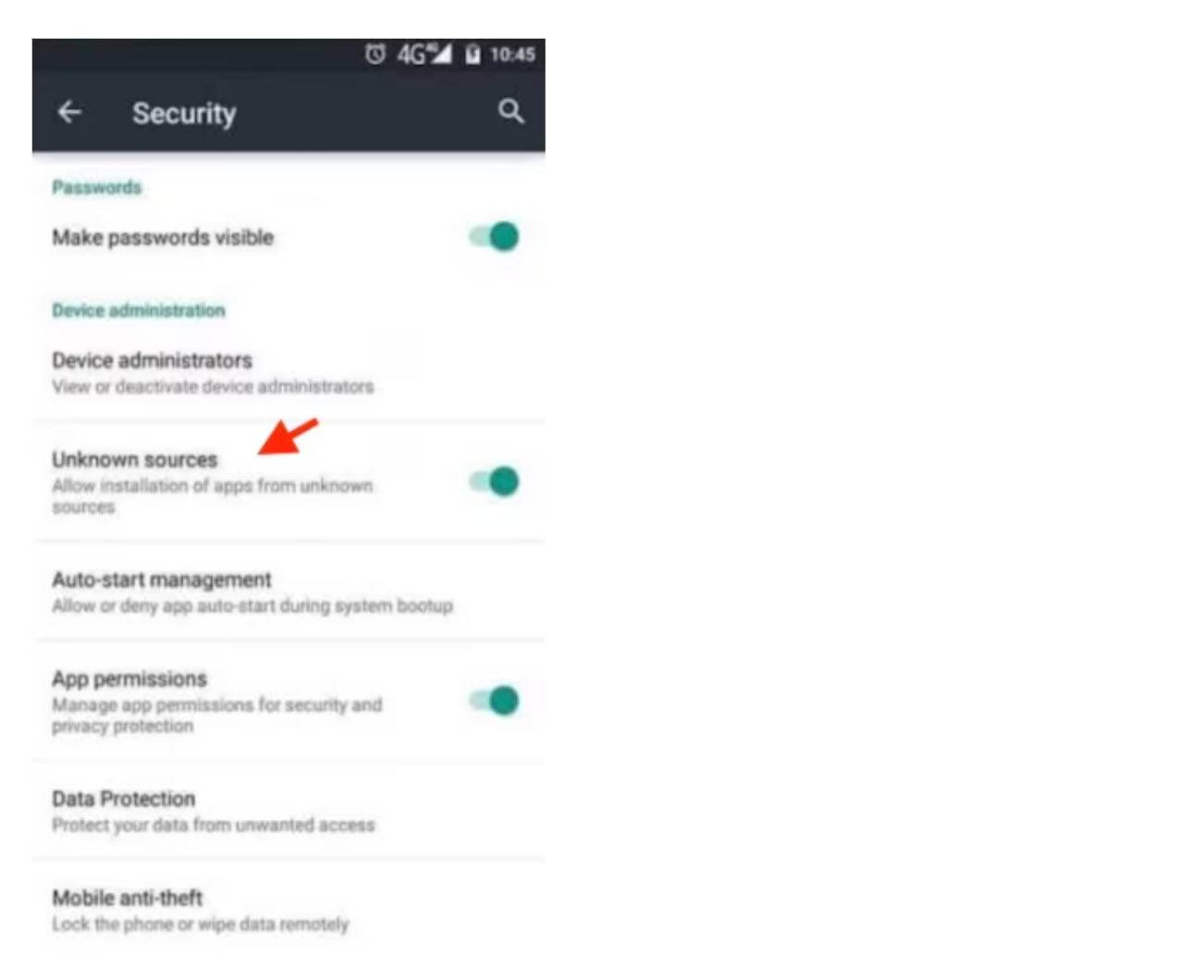
Step 4: Use the App to Access Settings
Open the installed app. Navigate to the device Settings. From there, go to Accounts and bypass the Google account linked to FRP.
Step 5: Restart the Device
After removing the Google account, restart your phone or tablet. The FRP lock should be gone.
This method provides an alternative route for Lenovo FRP Bypass, especially when you can’t access a computer or prefer manual control.
Bonus Tip: How To Deactivate Google FRP On Lenovo Phones?
To avoid FRP lock issues in the future, you can deactivate Google FRP before performing a factory reset or selling your device.
Steps to Turn Off FRP
- Open Settings on your Lenovo phone or tablet.
- Go to Accounts & Sync (or “Accounts”).
- Select your Google account.
- Tap Remove account.
- Confirm removal.
Once the Google account is removed, Factory Reset Protection won’t activate during a reset. This proactive step can save you from Lenovo FRP Bypass challenges in the future.
Part 6: FAQs About Lenovo FRP Bypass
Q1. Is There Any Lenovo Tab FRP Unlock Tool Free?
Yes, some free tools like APKs or scripts exist, but they’re often unreliable and risky. For safer and more consistent results, a trusted tool like iMobie DroidKit is recommended.
Q2. Does Lenovo FRP Bypass Delete Data?
Most methods will erase all data, except using your Google credentials. Always back up your device before starting the bypass.
Conclusion
Lenovo FRP Bypass doesn’t have to be a stressful roadblock. This comprehensive guide covered three effective ways to bypass FRP on Lenovo phones and tablets. You can start with the official method using your Google credentials, move to the powerful and secure iMobie DroidKit solution, or try the FRP Bypass APK method if you prefer a manual route. With the right tools and steps, regaining access to your Lenovo device is easier than ever.