
An iPhone stuck on Apple logo is one of the most common boot issues users face. You press the Power button, the Apple logo appears, but the phone never moves to the Home Screen. This usually happens after an update, restore, jailbreak attempt, or an unknown system error.
The good news is that the problem can often be solved at home using simple steps. In this guide, you will learn why this issue happens and how to fix an iPhone stuck on Apple logo with several reliable methods, including using an iOS system repair tool like TunesKit iOS System Recovery, force restart and recovery mode.
Why Is My iPhone Stuck on Apple Logo?
Several factors can cause your iPhone to freeze during startup. The most common reasons include:
• A failed iOS update
• Incomplete data transfer
• Corrupted system files
• Failed jailbreak attempt
• Hardware problems
• Battery or storage issues
Most of the time, the problem is software-related and can be fixed without replacing the device.
Method 1. Using TunesKit iOS System Recovery (Recommended)
If you want a quick and safe solution to fix your iPhone stuck on the Apple logo without losing any of your data, TunesKit iOS System Recovery is one of the most effective tools. This professional repair tool is designed to fix common iOS system issues without requiring advanced technical skills. With just a few simple steps, you can restore your device to normal without data loss in most cases.
Features of TunesKit iOS System Recovery
TunesKit iOS System Recovery offers a simple and effective way to fix more than 150 iOS system issues, including iPhone green screen, boot loops, black screen, and update failures. It is designed for users who want a fast and reliable repair solution without technical complexity.
1. No Data Loss Repair
The Standard Repair mode fixes most system problems while keeping all your data, apps, and settings intact.
2. Supports More Than 150 System Issues
TunesKit can resolve a wide range of issues, including white screen, frozen screen, Apple logo loop, stuck in recovery mode, update errors, and more.
3. High Success Rate
The software uses advanced system repair technology that delivers a higher success rate than traditional restore methods.
4. Easy to Use
With a clear interface and step-by-step instructions, anyone can repair their iPhone in minutes. No technical skills are required.
5. Full Compatibility
TunesKit works with all iPhone models and supports the latest iOS 26 versions, making it suitable for both new and older devices.
6. Safe and Secure
The software repairs your device without modifying system data or compromising privacy, ensuring a safe repair process.
Steps to Fix the Problem with TunesKit:
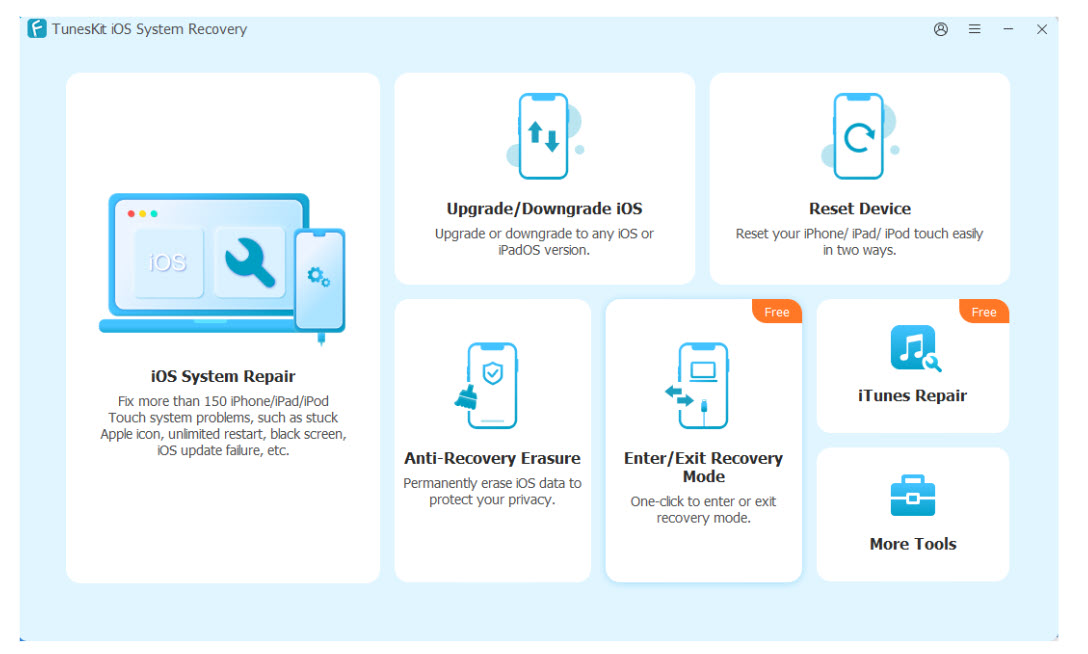
- Install and launch TunesKit iOS System Recovery on your computer. Connect your iPhone using a USB cable. Choose iOS System Repair.
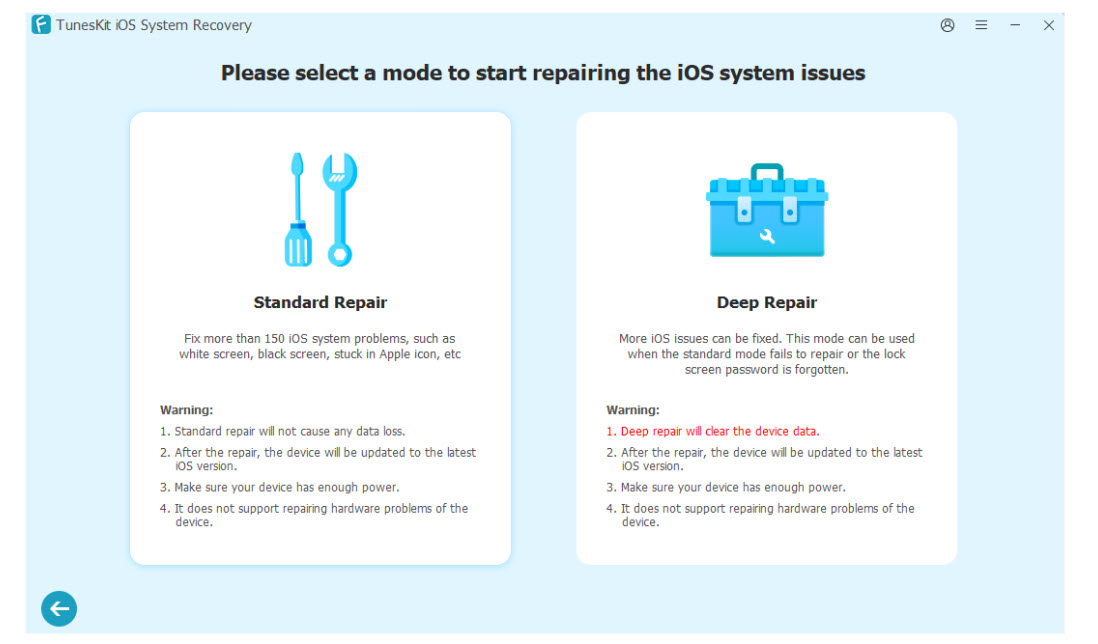
2. Click Start. Select Standard Repair to keep your data safe.
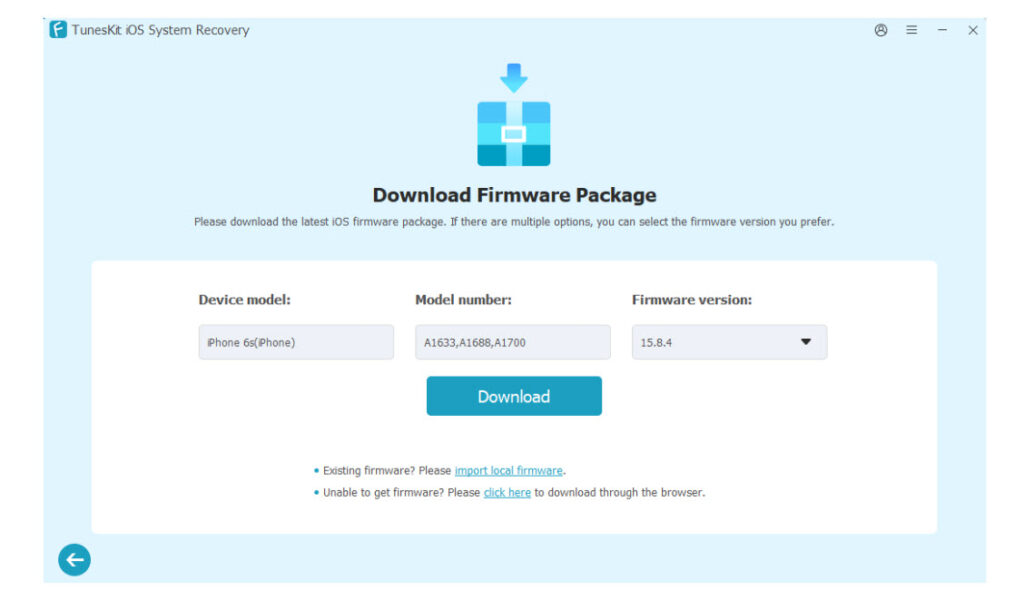
3. Check the device information. Download the firmware package as instructed.
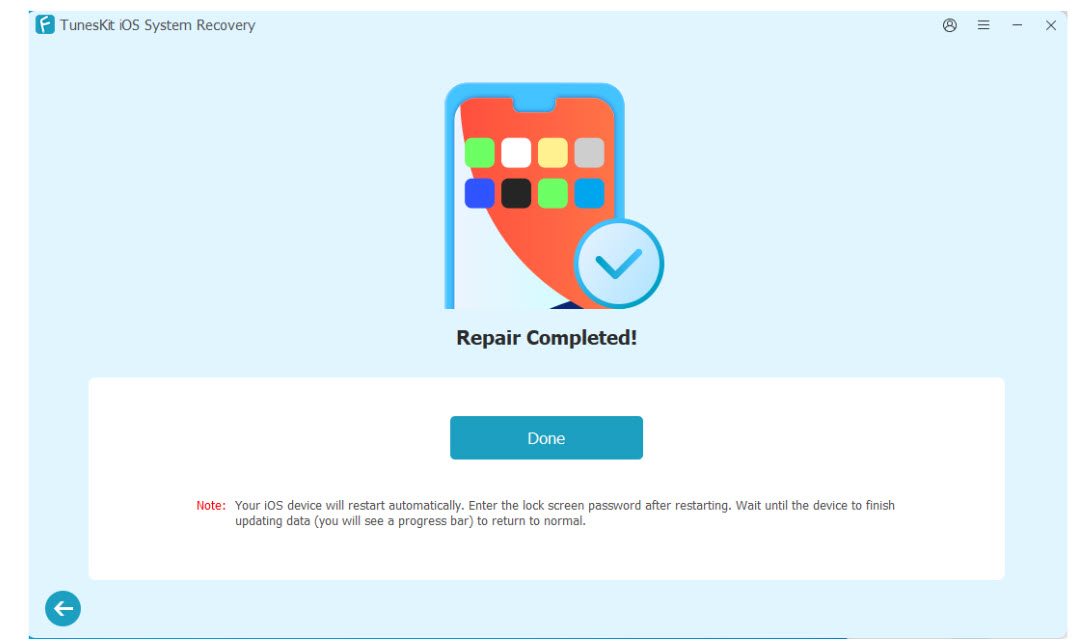
4. Click Start Standard Repair to begin the system recovery. Once the repair is completed, your iPhone will reboot normally and should pass the Apple logo screen.
This is the best solution for users who want a high success rate without losing data.
Method 2. Force Restart Your iPhone
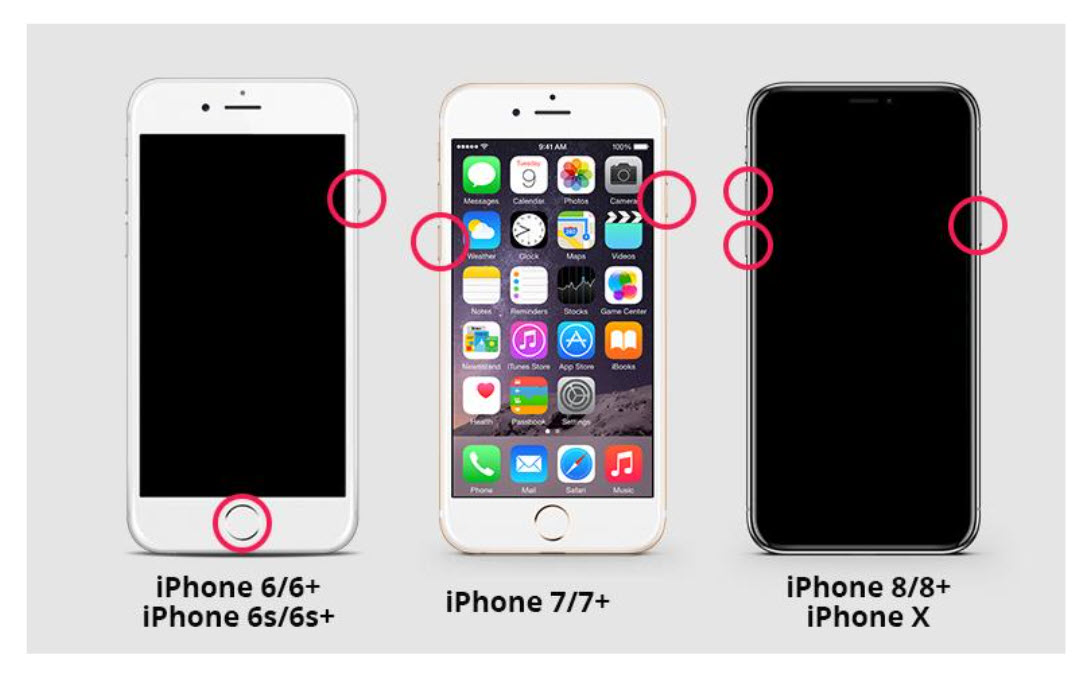
A force restart can clear temporary glitches that prevent the system from booting. The steps differ depending on the model you use.
For iPhone 8 or later:
1. Press and release the Volume Up button.
2. Press and release the Volume Down button.
3. Hold the Side button until the Apple logo appears.
For iPhone 7 or 7 Plus:
Hold the Volume Down button and the Power button together until the logo appears.
For iPhone 6s or earlier:
Hold the Home button and Power button together until your iPhone restarts.
If the issue is caused by a minor system glitch, the device should boot normally.
Method 3. Restore iPhone Using Recovery Mode
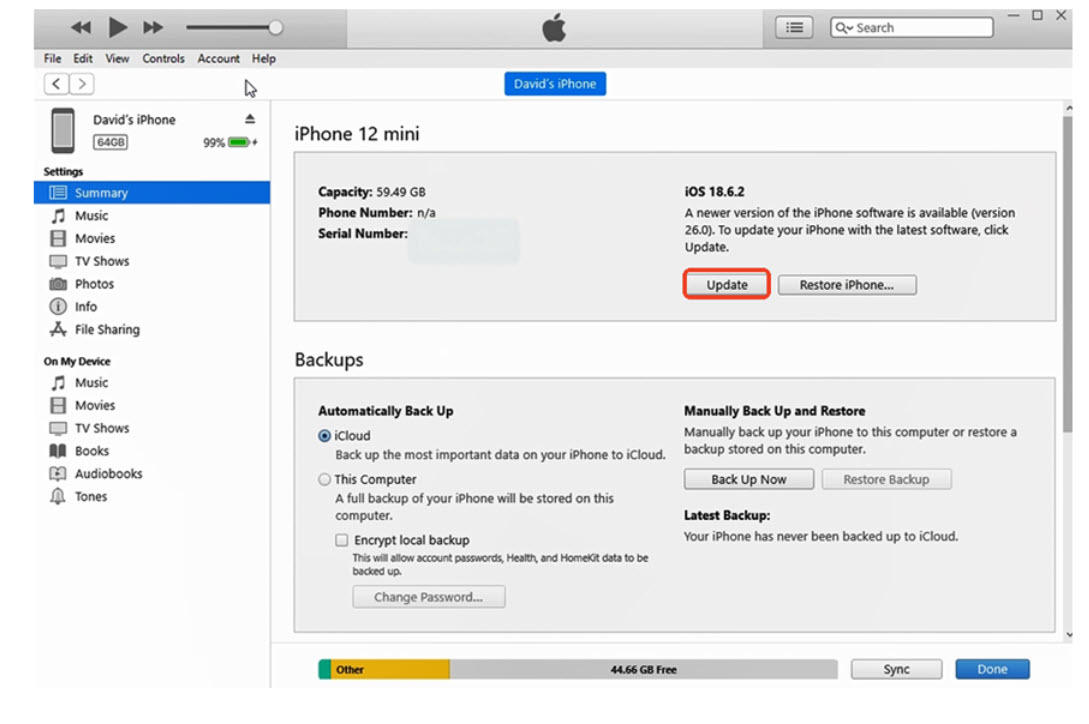
Recovery Mode allows your device to load firmware from iTunes or Finder when normal startup fails. This method may erase data, so use it only if you have a backup.
Steps:
1. Connect your iPhone to a computer.
2. Launch iTunes or Finder.
3. Enter Recovery Mode using the button combinations for your device model.
4. Choose Update to reinstall iOS without erasing data.
5. If the update fails, select Restore to reset the device.
Recovery Mode can fix deeper system problems, but may remove your data if a full restore is required.
Method 4. Restore iPhone Using DFU Mode
DFU Mode is the most advanced restore method. It reloads both software and firmware on your iPhone. It is useful when even Recovery Mode cannot fix the problem. However, this method will erase all content.
Steps:
1. Connect your iPhone to a computer.
2. Quickly press and release the Volume Up button.
3. Quickly press and release the Volume Down button.
4. Hold the Side button until the screen goes black.
5. Continue holding the Side button while pressing the Volume Down button for several seconds.
6. Release the Side button but keep holding Volume Down until the computer detects the device in recovery.
You should see a blank screen on your iPhone. Restore the device through iTunes or Finder.
Method 5. Contact Apple Support
If none of the software solutions work, your iPhone may have a hardware issue. Common causes include logic board damage, faulty storage, or a battery that is no longer functioning correctly. In such cases, it is best to contact Apple Support or visit an Apple Store.
FAQ about iPhone Stuck on Apple Logo
1. Can I fix an iPhone stuck on the Apple logo without losing data?
Yes. iOS system repair tools like TunesKit iOS System Recovery can repair the system without erasing your data. Choosing Standard Repair keeps all personal files intact.
2. What is the difference between Recovery Mode and DFU Mode?
Recovery Mode updates or restores iOS while keeping the bootloader active. DFU Mode completely rewrites both firmware and software and is used when Recovery Mode fails. DFU Mode always erases data.
3. Does using third-party repair tools void the warranty?
No. System recovery software such as TunesKit only repairs the operating system. It does not change hardware or jailbreak your device, so it does not void your warranty.
Final Thoughts
An iPhone stuck on Apple logo can be stressful, but in most cases, it is a software issue that can be repaired with simple steps. Force restarting your device or restoring it in Recovery Mode can help, but these methods do not always guarantee success and may result in data loss.
For a safer and more effective solution, using TunesKit iOS System Recovery is the most reliable option. It fixes the problem quickly while keeping your data intact.
If the problem continues after trying all methods, it may be a hardware issue and you should visit Apple Support for further diagnosis.

Recent comments