Transfer Everything to New iPhone from Android – Full Guide
Switching from Android to iPhone can be exciting, but it also brings a common question: how do you move all your data, including WhatsApp? Many people worry about losing photos, chats, or contacts during the switch. This guide will show you the best and easiest ways to how to transfer everything to new iPhone. Whether it’s your messages, pictures, apps, or WhatsApp data, we’ll help you do it step-by-step without missing anything important.
Part 1: Backup Your Android Device First
Before starting the how to transfer everything to new iPhone, it’s important to back up your Android phone. This protects your data in case something goes wrong or if you need to restore anything later.
Importance of Backing Up All Essential Data
Before moving to a new phone, it’s important to back up your Android device. Backing up protects your data in case something goes wrong during the transfer. If you accidentally lose a file or miss a step, having a backup means you can easily recover it.
Options: Google Drive Backup, Manual Backup to PC
You have two main ways to back up your Android device. The first is using Google Drive, which can automatically save your contacts, calendar, app data, and settings to your Google account. The second method is doing a manual backup by connecting your phone to a PC and copying folders like DCIM (photos), Downloads, and WhatsApp.
Ensuring No Important Files Are Left Behind
Once your backup is done, take a moment to check your files. Open your gallery, WhatsApp, and important apps to make sure everything you need is included in the how to backup android phone.
Part 2: Why You Need a Specialized Tool for WhatsApp Transfer
Many people assume that WhatsApp will move with everything else. Unfortunately, that’s not the case.
The Problem with WhatsApp Transfer
- Also, Android backs up WhatsApp to Google Drive, while iPhone uses iCloud.
- These two systems are not compatible, so you can’t simply restore your old chats on your new iPhone.
The Solution: iCareFone Transfer
This is a special tool made to move WhatsApp data from Android to iPhone easily. It works on Windows and Mac and is very simple to use.
What iCareFone Transfer Moves:
- Full chat history
- Photos, videos, and voice notes sent in chats
- Document attachments
Part 3: How to Transfer Everything to New iPhone (General Data)
Apple provides a free tool called Move to iOS to help people moving from Android to iPhone.
What is Move to iOS?
Move to iOS is a free app from Apple that you can install on your Android phone. It connects wirelessly to your new iPhone during setup and helps transfer important data like contacts, messages, photos, and calendars.
What Move to iOS Transfers:
- Contacts
- Text messages
- Calendar events
- Photos and videos from your camera roll
What Move to iOS Does NOT Transfer:
- Some apps and app data
- Custom settings
- WhatsApp Phone call history
Limitations
- You can only use Move to iOS when setting up a new iPhone.
- If your iPhone is already set up, you’ll need to reset it to use this tool.
- The process can take from a few minutes to over an hour depending on how much data you have.
Part 4: How to Transfer WhatsApp from Android to iPhone Using iCareFone
Moving WhatsApp data from Android to iPhone can be tricky because the two systems use different backup services—Google Drive on Android and iCloud on iPhone. iCareFone Transfer offers a simple and effective way to move your chats, photos, and attachments. Below are the main features that make iCareFone Transfer a good choice for WhatsApp migration:
Key Features:
- Transfers full WhatsApp data including messages, voice notes, images, videos, and file attachments
- Works without iCloud or Google Drive, avoiding storage limitations and login issues
- Supports transfer to an already set-up iPhone, so there’s no need to reset the device
- Keeps chat history and group settings intact, so everything looks just like it did on your old phone
Step-by-Step Guide
Step 1: Download and install the iCareFone Transfer app from Google Play.
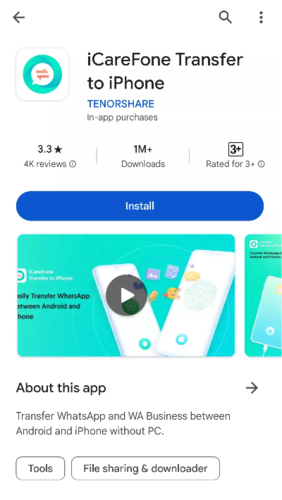
Step 2: Open the app and select “Transfer WhatsApp Data” > “Android to iOS”.

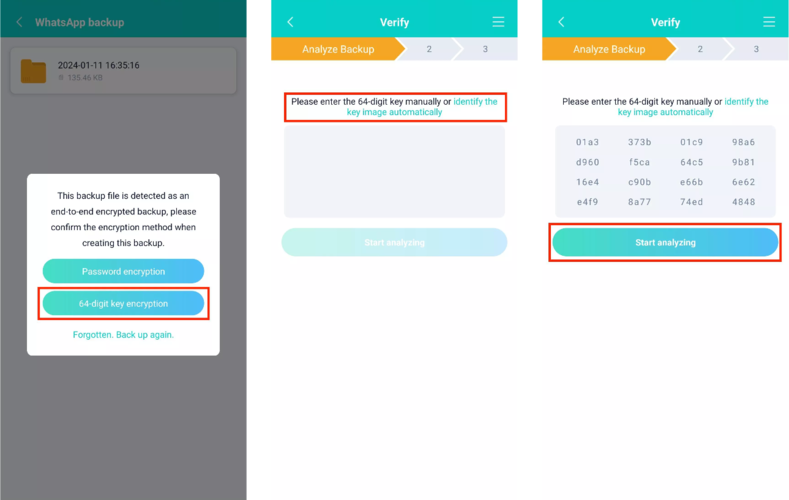
Step 3: Authorize access to the backup folder and verify your WhatsApp account using the 64-digit key.
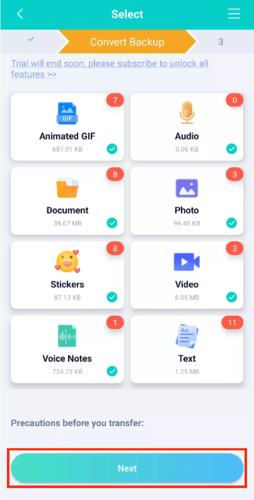
Step 4: Choose the WhatsApp data you want to transfer.
Step 5: The app will extract and convert the backup—wait for it to complete.
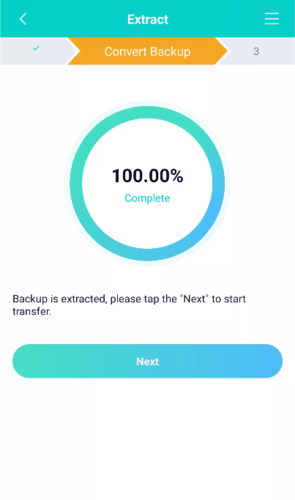
Step 6: On your iPhone, disable Find My iPhone and log into WhatsApp.

Step 7: Connect both devices via USB-C or OTG cable and follow on-screen prompts.
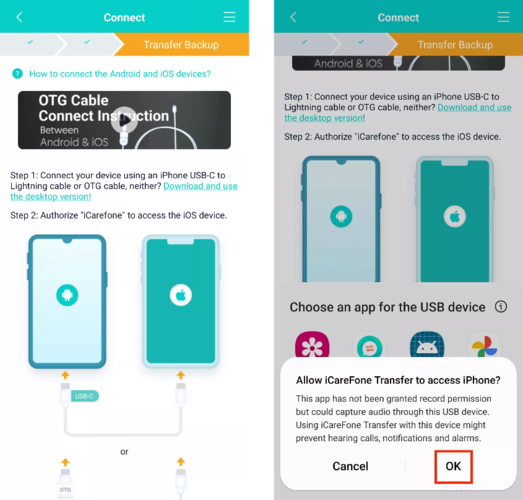
Step 8: Once the transfer finishes, reinstall WhatsApp on your iPhone and check your restored data.
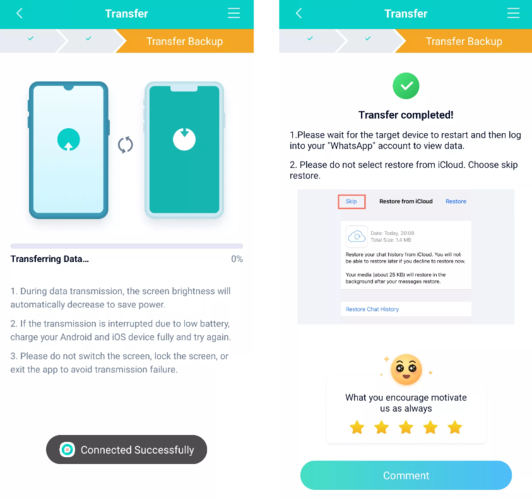
You can also check your transfer history in the app at any time.
Why It’s Better Than Other Methods
- No need for Google Drive or iCloud
- You can do this even after your iPhone is already set up
- All types of data are included
- Works with both old and new versions of WhatsApp
Part 5: Tips Before You Switch Phones
- Ensure both phones are fully charged: Aim for at least 80% battery on each device to avoid interruptions during the data transfer process.
- Use official or certified USB cables: This helps maintain a stable connection and prevents errors while moving your data.
- Turn off WhatsApp’s 2-step verification temporarily: Disabling it prevents login issues during the transfer and can be re-enabled later.
- Don’t erase your Android phone too soon: Wait until you’ve confirmed that all chats, photos, and files are fully transferred and working on the iPhone.
Conclusion
If you’ve been wondering how to transfer everything to new iPhone from an Android phone, the answer is simple. Use Move to iOS for general data like contacts and photos, and use iCareFone Transfer for WhatsApp. This way, nothing important is left behind. Instead of worrying about losing memories, messages, or files, these tools help make the move smooth and easy. Just take a few steps, follow the instructions, and your new iPhone will have everything from your old Android device.

Recent comments